Forward a USB device
This page guides you through the process of forwarding a USB device via Reemo. Reemo’s USB forwarding technology is primarily designed for HID devices (graphics tablets, remote controls, crypto keys, etc.) and is not compatible with real-time devices (audio/video).
Note
Before following this guide, make sure the necessary drivers for the device you want to forward are installed on the local computer where the device is physically connected.
Step 1: Prepare the remote computer to accept virtual USB devices
- The requirements for the Reemo virtual USB driver depend on the operating system of your remote computer:
Windows: The Reemo virtual USB driver is automatically installed with the Reemo Agent installer.
Linux: The
vhci-hcdkernel module is required on the remote computer. The Reemo Agent install script sets it up automatically on most distributions. See USB forwarding on Linux.macOS: No virtual USB driver is required.
Step 2: Install the USB Companion App on the local computer
The last installation step is to download and install the USB Companion App. This application bridges your local USB devices with the Reemo WebClient.
Windows (x64): https://download.reemo.io/reemo-usb-companion.setup.x64.exe
Linux (Debian/Ubuntu): https://download.reemo.io/reemo-usb-companion.deb
Linux (RHEL/Fedora): https://download.reemo.io/reemo-usb-companion.rpm
Note
The USB Companion App must be installed on the computer where the USB device is physically connected.
The USB driver is located on the remote computer, while the USB Companion App is on the local computer.
Step 3: Forward your USB device with Reemo
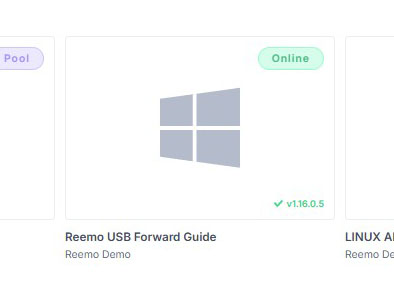
First, connect to your computer via Reemo.
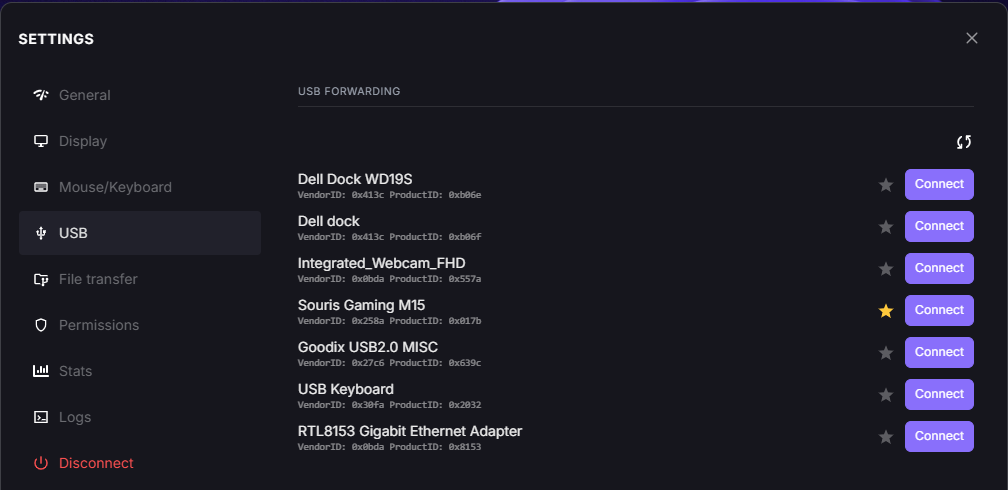
Open tune Settings > usb USB from the toolbar.
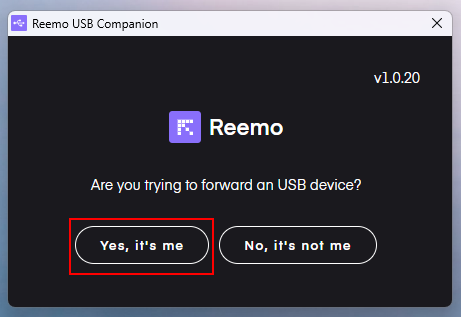
Confirm access to your USB devices.
You should now see your USB devices available for forwarding. What’s next depends on the type of device you want to forward:
Some USB devices are generic: they don’t require any manufacturer driver, either on the local computer or on the remote computer. This is notably the case for:
Game controllers (DualSense PS5, DualShock PS4, Xbox One Controller, Xbox Series Controller, generic XInput controllers…)
Keyboard
Mouse
Warning
If you forward your keyboard or mouse, it will be disconnected from your local computer and only available on the remote computer.
Select the corresponding device.
Click Connect and Reemo will automatically forward the USB device to the remote computer.
You can now use this device as if it were directly connected to the remote computer.
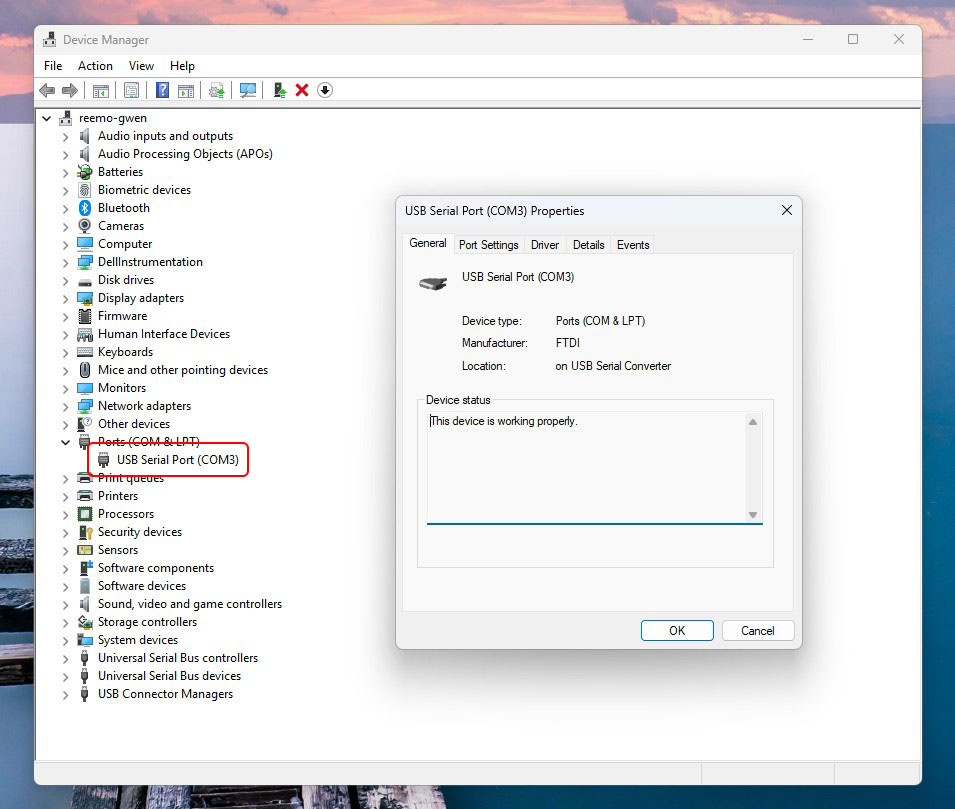
In this example, we use a USB remote control used by NFL coaches to control their replay software. These remotes are USB devices simulating a COM serial port on the computer. Here, we can see that on our local computer (with the remote physically connected), a COM port is exposed (COM3).
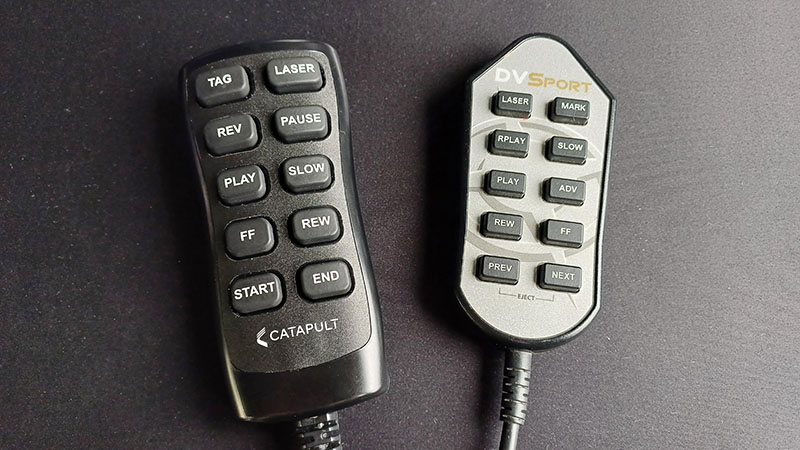
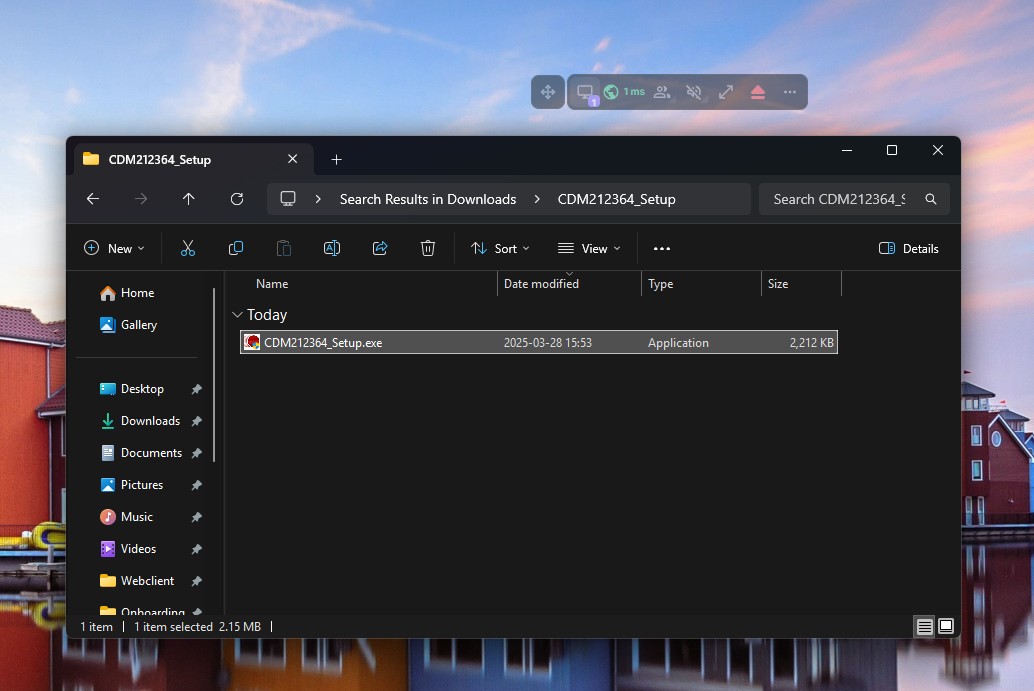
The two remotes used in this example share the same driver provided by the manufacturer. Some USB devices require this kind of manufacturer driver to be installed on the remote computer before they can be forwarded.
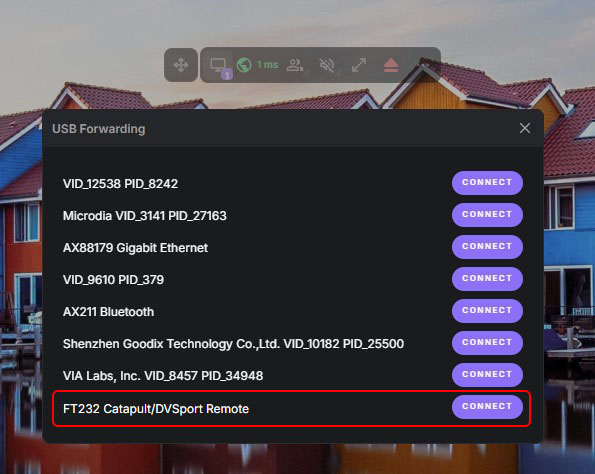
In our example, we select the FT232 Catapult/DVSport Remote device, which corresponds to our remote control.
Click Connect and Reemo will automatically forward the USB device to the remote computer.
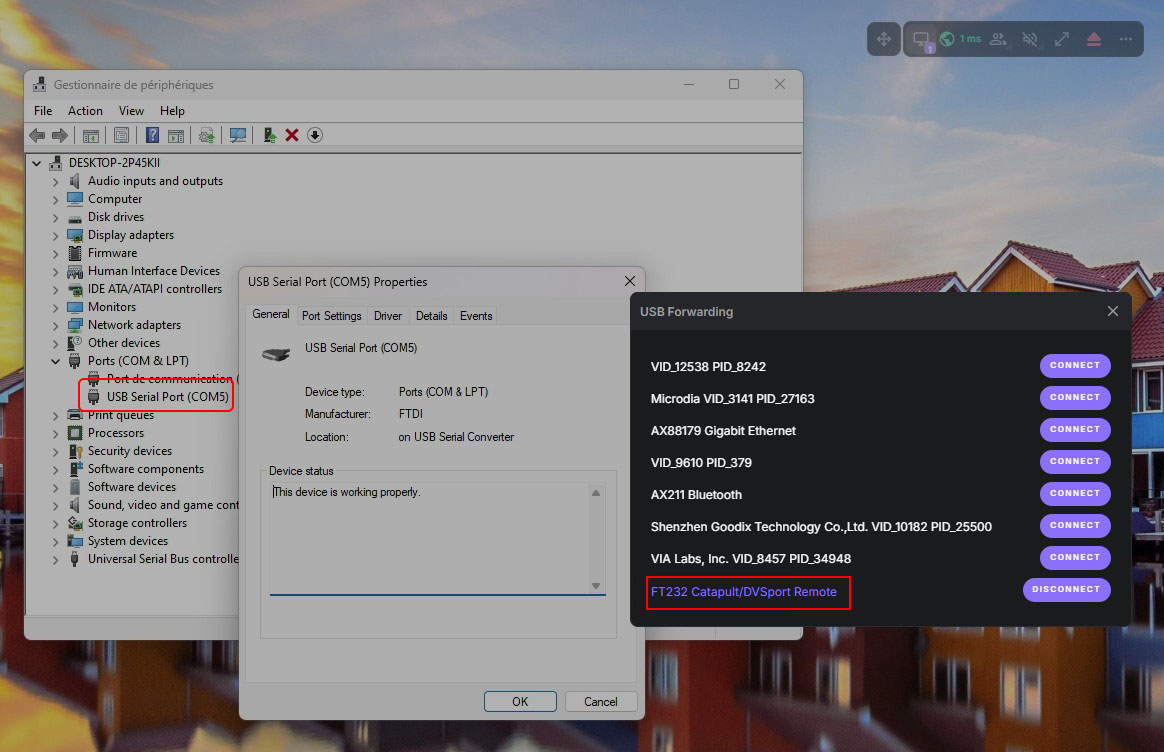
If we open the Device Manager on the remote computer, we can see that the remote is detected and exposes a new COM port (COM5). This means the device has been successfully forwarded using Reemo’s USB forwarding technology.
You can now use this device as if it were directly connected to the remote computer.
Forwarding a Wacom graphics tablet
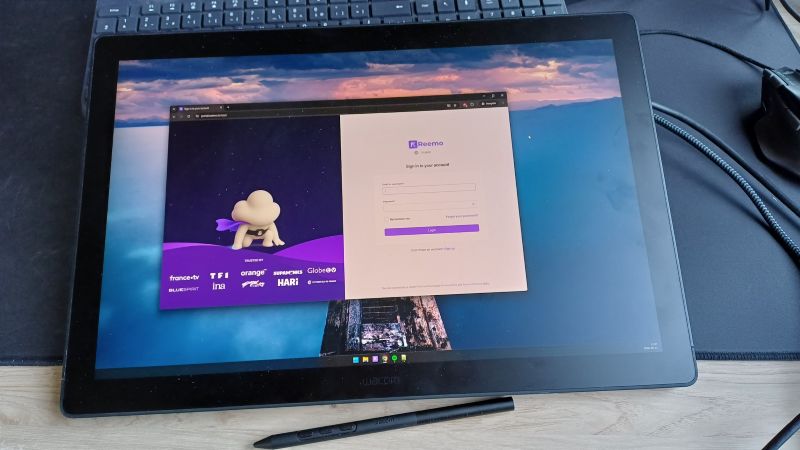
In this example, we forward a Wacom Cintiq 16 graphics tablet, used for digital drawing and photo retouching.
Note
Make sure to install the Wacom drivers required to use your tablet on the remote computer.
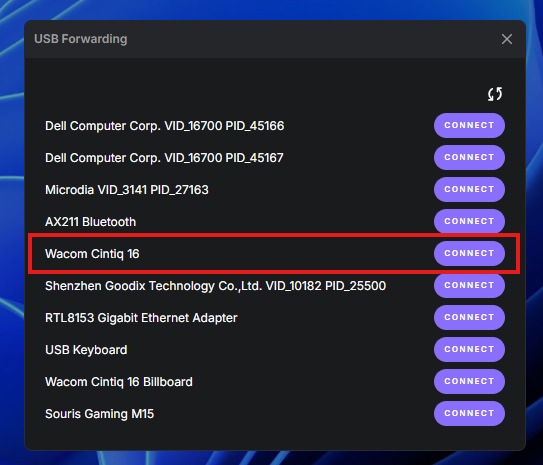
Select the Wacom Cintiq 16 device, which corresponds to your tablet.
Click Connect and Reemo will automatically forward the Wacom tablet to the remote computer.
Important
Once the tablet is forwarded, enable tune Settings > keyboard Mouse & Keyboard > Show remote cursor. Without this option, the cursor controlled by the tablet on the remote computer stays invisible.
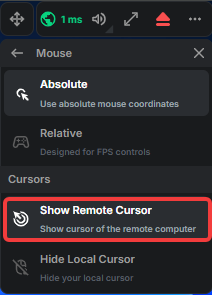
Enabling Show remote cursor in Settings > Mouse & Keyboard.
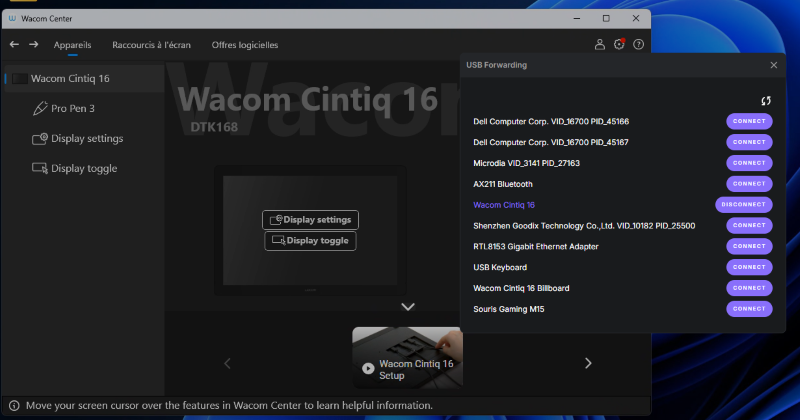
Open the Wacom Center on the remote computer: the tablet is detected. This means the Wacom tablet has been successfully forwarded using Reemo’s USB forwarding technology.
You can now use this device as if it were directly connected to the remote computer.
See Also
USB forwarding on Linux: what the Agent install script sets up on a Linux remote computer, and the Autodesk workstation case.
Troubleshooting USB Forwarding: if you run into an issue during USB forwarding.