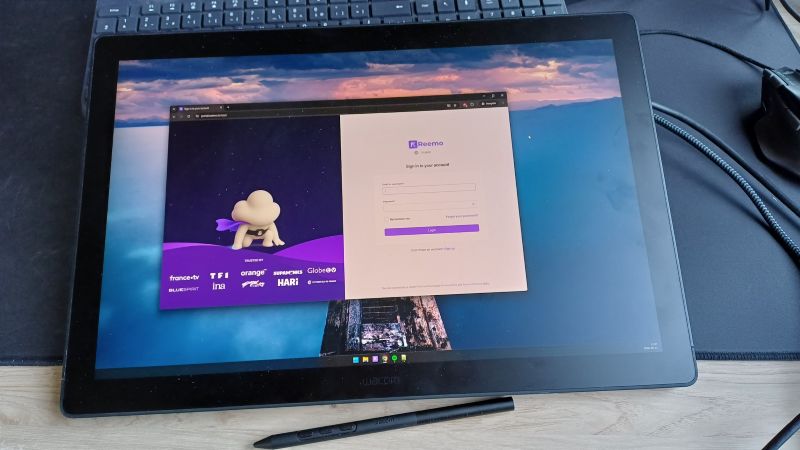
Forward your Wacom Tablet
This page guides you through the process of forwarding your Wacom Tablet via Reemo. Reemo’s USB forwarding technology is primarily designed for HID devices (graphics tablets, remote controls, crypto keys, etc.) and is not compatible with real-time devices (audio/video).
Note
Before following this guide, make sure the necessary drivers for the device you want to forward are installed on the local computer where the device is physically connected.
Step 1: Prepare the remote computer to accept virtual USB devices
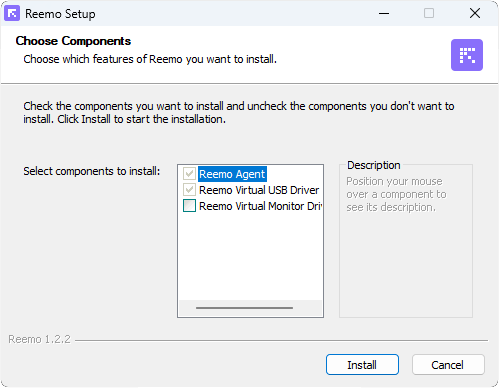
- The requirements for the Reemo virtual USB driver depend on the operating system of your remote computer:
Windows : The Reemo virtual USB driver is automatically installed with the Reemo Agent installer. (If you see an error in the USB menu, please reinstall the Reemo Agent).
Linux : No virtual USB driver is required.
macOS : USB forwarding is not available for macOS yet (currently in development).
Step 2: Install the USB Companion application on the local computer
The last installation step is to download and install the Reemo USB Companion application. This application bridges your local USB devices with the Reemo WebClient.
Windows (x64): https://download.reemo.io/reemo-usb-companion.setup.x64.exe
Linux (Debian/Ubuntu): https://download.reemo.io/reemo-usb-companion.deb
Linux (RHEL/Fedora): https://download.reemo.io/reemo-usb-companion.rpm
Note
The USB Companion must be installed on the computer where the USB device is physically connected.
The USB driver is located on the remote computer, while the USB Companion is on the local computer.
Step 3: Forward your Wacom Tablet with Reemo
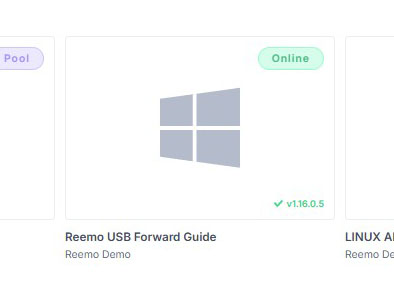
First, connect to your computer via Reemo.
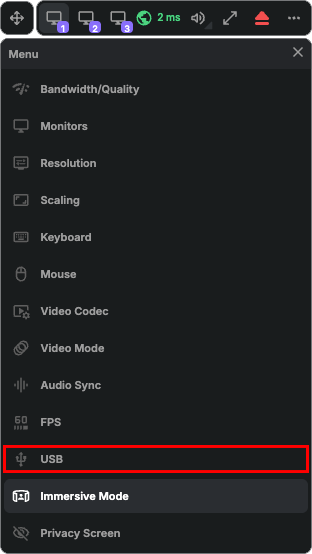
Open the USB menu.
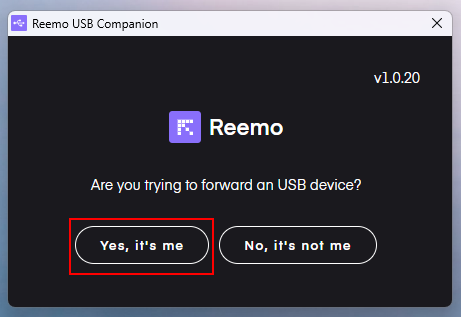
Confirm access to your USB devices.
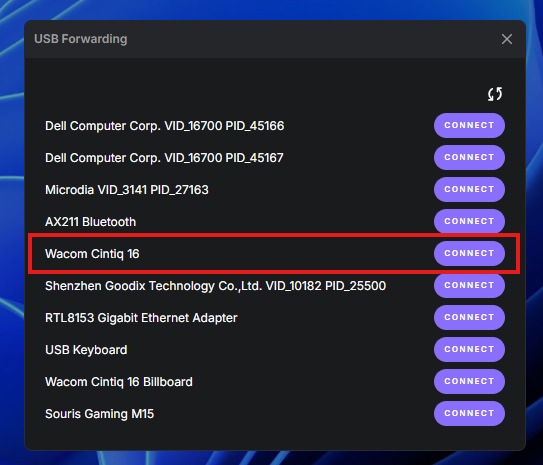
You should now see your USB devices available for forwarding.
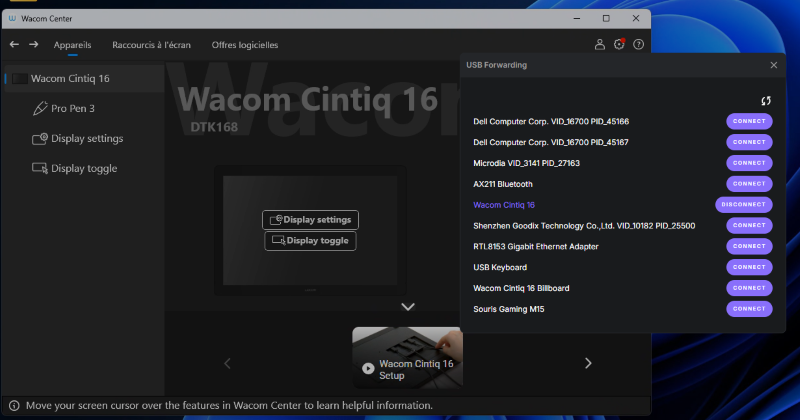
In our example, we select the Wacom Cintiq 16 device, which corresponds to our tablet.
Click Connect and Reemo will automatically forward the Wacom Tablet to the remote computer.
If we open the Wacom Center on the remote computer, we can see that the tablet is detected. This means the Wacom Tablet has been successfully forwarded using Reemo’s USB forwarding technology.
You can now use this device as if it were directly connected to the remote computer.