Diagnostics
The Permissions, Stats, and Logs tabs of the Settings panel are grouped on this page: together, they give you visibility into the session’s browser permissions, network/connection health, and raw connection logs — mainly useful for troubleshooting.
Permissions
The Permissions tab reports the current state of each browser permission relevant to your Reemo session:
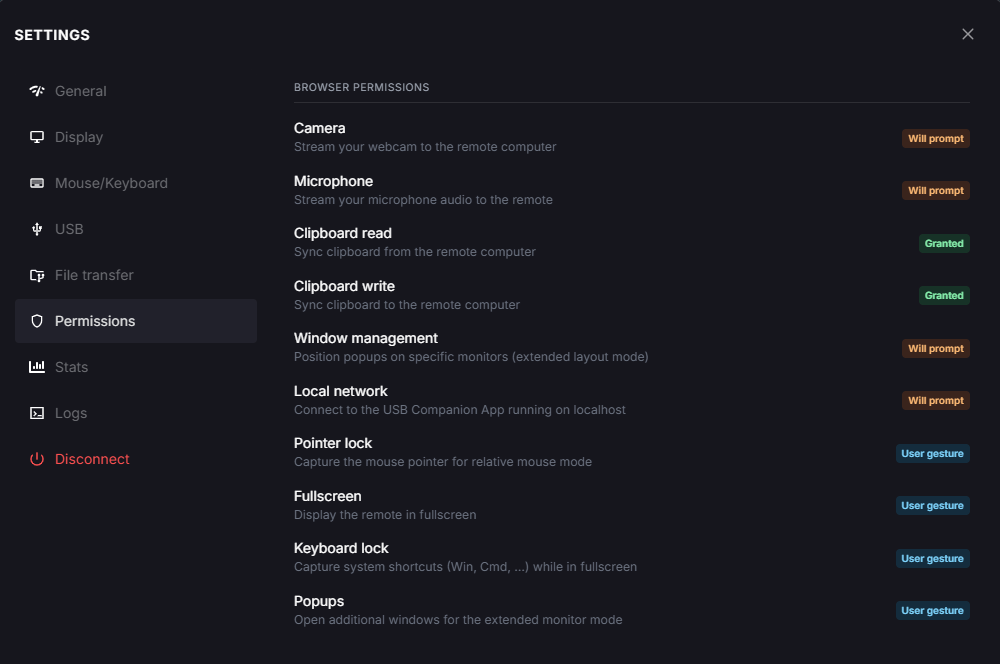
Settings panel, Permissions tab.
- Media:
Camera: stream your webcam to the remote computer.
Microphone: stream your microphone audio to the remote computer.
- Clipboard:
Clipboard read: sync clipboard from the remote computer.
Clipboard write: sync clipboard to the remote computer.
- Display:
Window management: position popups on specific monitors (extended layout mode).
Fullscreen: display the remote session in fullscreen.
Popups: open additional windows for the extended monitor layout.
- Input:
Pointer lock: capture the mouse pointer for relative mouse mode.
Keyboard lock: capture system shortcuts (Win, Cmd, …) while in fullscreen.
- Network:
Local network: connect to the USB Companion App running on
localhost.
Each permission shows one of the following states:
Will prompt: the browser will ask for this permission the next time it is needed.
Granted: the permission has already been granted and will not be prompted again.
User gesture: the permission is tied to a direct user action (for example, a click) rather than an explicit browser prompt.
If a permission you need is blocked, change it from your browser’s own site settings for the Reemo portal.
Stats
The Stats tab shows live network and session diagnostics, useful when reporting a connectivity or performance issue.
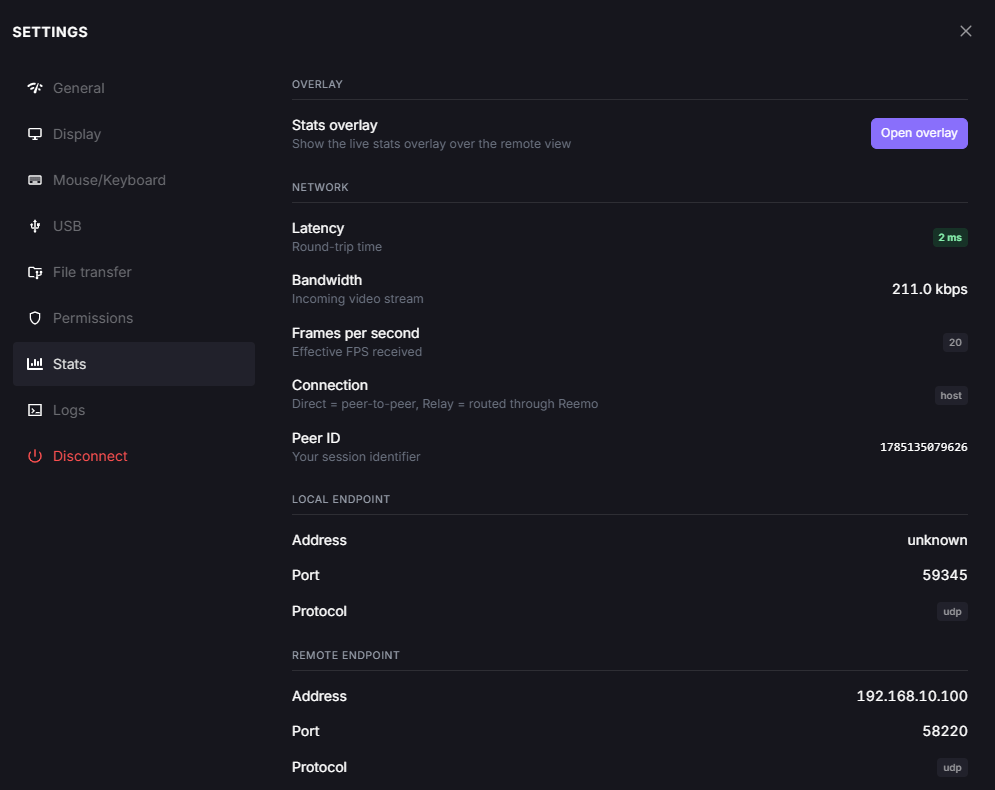
Settings panel, Stats tab.
Stats overlay: displays the same live stats directly over the remote view, without opening the Settings panel. Click Open overlay to show it.
Build to lossless tiles: a diagnostic aid for Build to Lossless. When enabled, the remote view is overlaid with colored tiles: green (lossless tile shown), red (changed since, lossy video shown) and blue (image just received).
- Network:
Latency: round-trip time, in milliseconds.
Bandwidth: incoming video stream bitrate.
Frames per second: effective FPS received (as opposed to the FPS limit, which is a target).
Connection: whether the session is Direct (peer-to-peer) or Relay (routed through Reemo).
Peer ID: your session’s identifier.
Local endpoint / Remote endpoint: address, port, and protocol (UDP/TCP) for each side of the connection.
Logs
The Logs tab shows a raw, timestamped log of the current session — connection negotiation, codec/bandwidth changes, keyboard/clipboard state, and similar internal events.
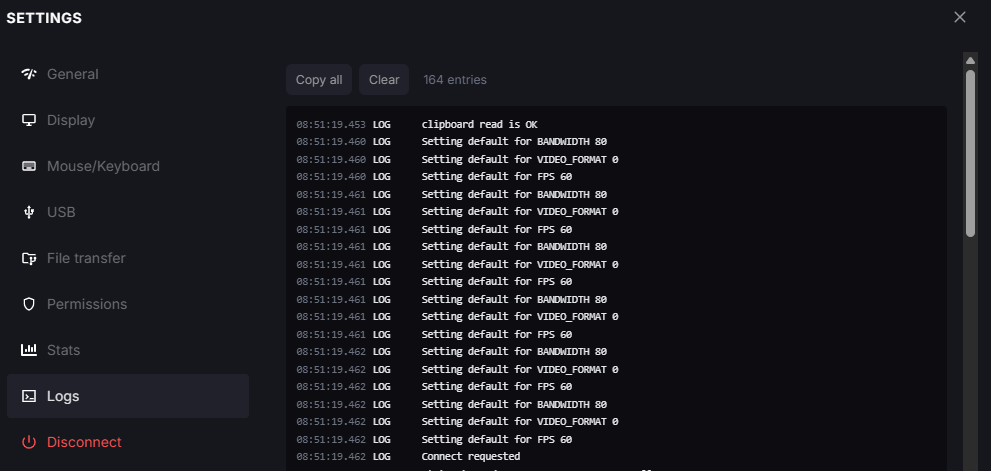
Settings panel, Logs tab.
Use Copy all to copy every entry, or Clear to empty the log. This is primarily useful when reporting an issue to Reemo support.
Note
Log entries can include technical network details (for example, candidate IP addresses and ports). Avoid sharing raw logs outside of a support request.
Back to the Settings panel overview.