My Approvals
Handle the access requests for the resources you approve.
A badge on My Approvals, in the sidebar, shows the number of pending requests. You receive the requests for resources on which an administrator has assigned you as an approver (see Configure Approval for a Resource).
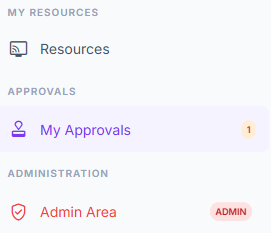
Approvals section of the sidebar.
View Requests
Find each request in the table, with the user, the resource, the reason and the status (see Request Statuses). Filter the list using the status buttons above the table: All, Pending, Approved, Used, Refused, Canceled, Expired, or Revoked.
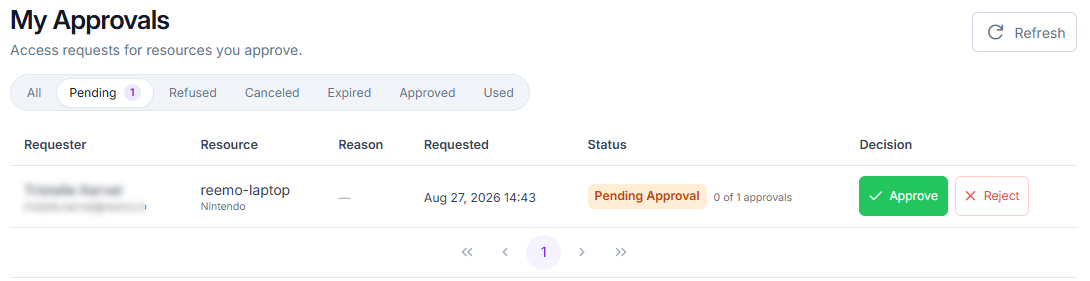
My Approvals page.
The Reason column shows the user’s answers to the connection form, and also whether the session will be time-limited.
The equivalent view for the whole organization, reserved for administrators, is described in Access Requests. To request access yourself, see Request Access to a Resource.
Approve or Reject a Request
Approve or reject the request: it stays Pending until the number of approvals required by the resource’s administrator is reached. A single rejection sets it to Refused immediately.
From the My Approvals Page
Open approval My Approvals and find the Pending request.
Click Approve or Reject. You can add an optional comment explaining the rejection.
From a Notification
You can also handle a request directly from its notification.
Click the request’s notification in the Notifications menu. A window opens directly.
Click Approve to grant the request, or Reject to deny it.
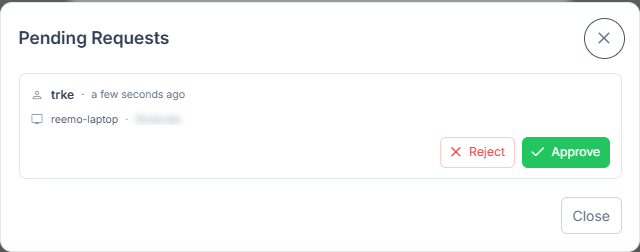
Approve/Reject window opened from a notification.
Scheduled Requests and Extensions
Two badges in the Reason column flag a particular type of request:
For (followed by the planned day and time): a scheduled request. You can approve it in advance, as the access is only usable from the planned time.
Extension (followed by the duration, for example Extension +30 min): a request to extend an ongoing session. Approving adds that time to the session.
Revoke an Approved Request
As an approver of the resource, withdraw an access that you or another approver granted.
Open approval My Approvals and filter on Approved or Used.
Click Revoke on the request.
Add an optional comment, then confirm.
The request becomes Revoked. The open session is cut automatically, with a dedicated message, and the user can no longer reconnect with this request. Administrators have the same action (see revoking as an administrator).
See also
Approval Workflow — Overview of the approval workflow and the pages that detail it.