Mouse & Keyboard
The Mouse/Keyboard tab of the Settings panel adjusts input modes and keyboard behavior.
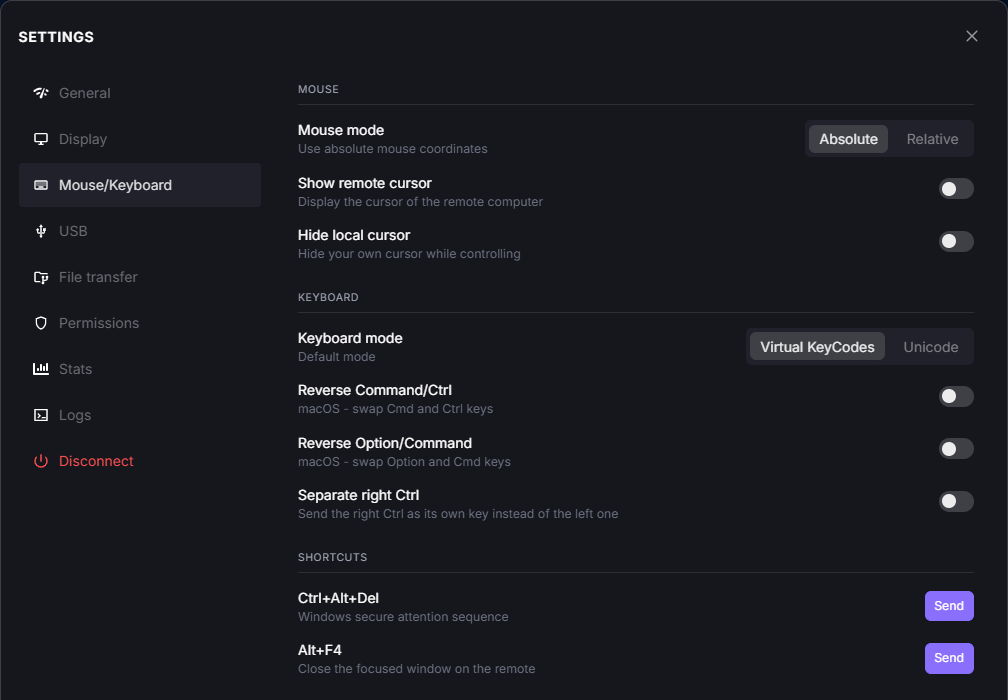
Settings panel, Mouse/Keyboard tab.
Note
Options with a star next to their name can be pinned to the toolbar: click the star (see Pinning Favorites to the Toolbar).
Mouse
Mouse Mode
Absolute: uses the absolute coordinates of the mouse. Provides better precision during movements and is recommended for most standard uses.
Relative: uses the relative movements of the mouse (instead of position). Designed for video games, especially FPS, where continuous and fluid movements are essential.
Show Remote Cursor
Displays the remote computer’s cursor. Particularly useful when multiple people are on the same machine: without this option, the remote user cannot see the local user’s cursor.
Hide Local Cursor
Hides your local cursor (to be used together with Show Remote Cursor). Particularly useful for graphic tablet users to counter latency: only the real position of the remote cursor is shown, not the slightly delayed local one.
Important
If you are connected to a Windows machine and cannot see the cursor, it means no mouse is physically connected to the PC. To fix this issue, either plug in a mouse or enable Mouse Keys in Windows (Settings > Accessibility > Mouse > Mouse keys).
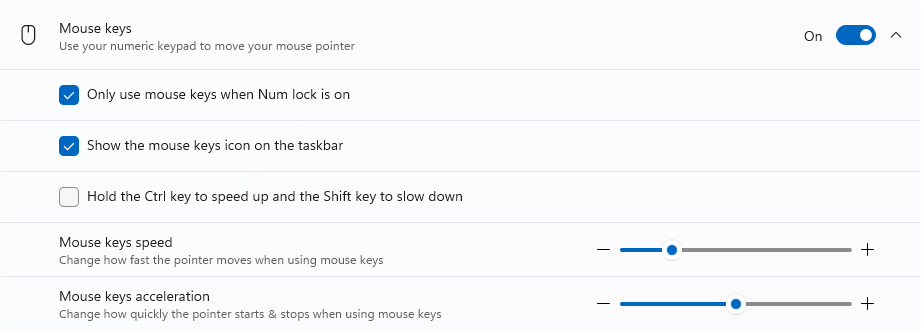
Enabling Mouse Keys in Windows.
Keyboard
Keyboard Mode
- Virtual KeyCodes (default): Sends the physical key code (its position on the keyboard).
- Example: if your local keyboard is AZERTY and the remote machine is QWERTY, pressing the A key locally will send a Q to the remote machine.This mode is useful if you want to reproduce the physical layout of your keyboard, regardless of the language or remote mapping.
- Unicode: Sends the Unicode character corresponding to the pressed key directly.
- Example: typing A on an AZERTY keyboard will send an A, even if the remote machine is configured as QWERTY.This mode is particularly useful when keyboard layouts differ (AZERTY ↔ QWERTY, or other non-standard layouts), or when using keyboards with specific system differences (Windows ↔ macOS, custom keyboards, etc.).
Warning
Note
Unicode has no effect on a Linux remote machine, which always receives Unicode.
An administrator can also set the default keyboard mode for a team in a Remote Experience, and lock it.
Modifier Keys
Click Customize to choose which key of the remote machine each modifier key of your keyboard (Ctrl, Alt, Win or Cmd) sends. The badge next to the setting shows the combination, for example For PC → macOS.
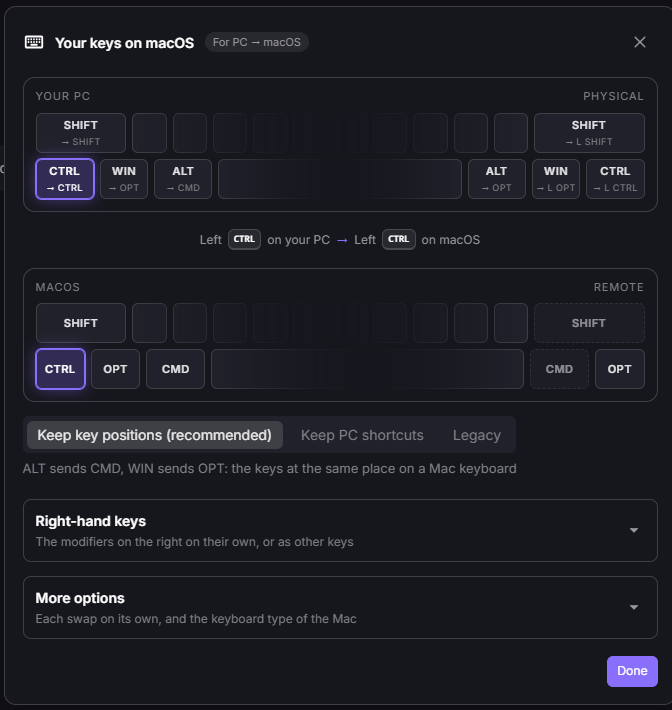
Window opened by the Customize button, PC → macOS, with Keep key positions selected.
The window shows your keyboard (Your PC) above the remote keyboard, and the sentence between them sums up where the highlighted key is sent. The first time you connect, a notice at the top right of the screen offers See keys, which opens this window. It appears once for each user.
Modes are available when your computer and the remote machine do not use the same system: PC → macOS or macOS → PC. Windows and Linux count as one system, PC, because they share the same modifier keys. Between two PCs, each key is sent to the key of the same name (on Linux, Win is Super), and you adjust it with the options below.
Choose a Mode
For a PC → macOS setup, each mode sends the keys of your PC as follows:
Mode |
Ctrl |
Alt |
Win |
Choose it to |
|---|---|---|---|---|
Keep key positions (recommended) |
Ctrl |
Cmd |
Opt |
Find each key at the same place as on a Mac keyboard. |
Keep PC shortcuts |
Cmd |
Opt |
Ctrl |
Keep Ctrl+C, Ctrl+V and the other shortcuts you know. |
Legacy |
Ctrl |
Opt |
Cmd |
Send each key by its name, as in earlier versions of Reemo. |
With Keep key positions, Ctrl stays Ctrl: to copy, press Alt+C (the Mac receives Cmd+C), or choose Keep PC shortcuts.
For a macOS → PC setup, Keep PC shortcuts is called Keep Mac shortcuts: Cmd sends Ctrl, so Cmd+C and Cmd+V work as on your Mac.
Click Reset to restore the default settings.
Fine-Tune the Keys
Each mode sets the options below for you. You can also set them one by one.
Use Right-hand keys to choose how the modifiers on the right of the keyboard are sent:
Separate right Alt (AltGr): if your keyboard layout has an AltGr key (such as French AZERTY or US International), it always sends AltGr, whether this option is on or not. If your layout only has Alt (such as US ANSI), turn this option on to send AltGr to the remote machine.
Separate right Ctrl, Separate right Shift and Separate right Win: each right-hand key is sent as itself instead of as the left one. Use them for software that tells the two apart, like VirtualBox.
Right Alt as Cmd and Right Ctrl as Opt (macOS only): these options are available only when the key positions are matched, with Keep key positions or Match key positions.
For example, with Separate right Alt (AltGr) on, a US QWERTY keyboard can type the euro sign on a remote machine set to French AZERTY.
Use More options to set each swap separately:
Reverse Win ↔ Ctrl (all systems): Win sends Ctrl and Ctrl sends Win (Super on Linux, Cmd on macOS).
Reverse Alt ↔ Win (Windows and Linux): Alt sends Win (Super on Linux) and Win sends Alt.
Match key positions (when your computer and the remote machine use different systems): it has the same effect as the Keep key positions mode.
ISO keyboard (macOS only): turn it on if the key left of 1 and the key next to the left Shift are swapped.
Click Done to close the window.
Shortcuts
Send a system shortcut or a keyboard action to the remote machine with one click. Some buttons depend on the operating system of the remote machine. Custom shortcuts, which you define yourself, are covered in Shortcuts.
Ctrl+Alt+Del (not available on macOS machines)
Click Send to send the Ctrl+Alt+Del combination to the remote machine, for example to open Task Manager or the Windows security screen.
Windows intercepts this system shortcut on the local computer before it reaches the remote machine, which is why Reemo provides a button for it. The button appears for Windows and Linux remote machines. It does not appear for macOS remote machines, where this shortcut does not exist.
Alt+F4 (not available on macOS machines)
Click Send to close the focused window on the remote machine. The button does not appear for macOS remote machines, where this shortcut does not exist.
Paste as Keystrokes
Click Paste to type the text of your clipboard on the remote machine, key by key. Use it for a field that refuses a regular paste, such as the Windows sign-in screen.
Release All Keys
Click Release to lift every key and modifier still held down on the remote machine, for example a stuck Ctrl, Alt or Shift. Use it for troubleshooting when the remote machine behaves as if a key were still pressed.
Back to the Settings panel overview.