Shortcuts
Create your own keyboard shortcuts to send other keys to the remote computer or trigger an action, such as switching to fullscreen. When you press the combination, Reemo sends the keys or runs the action you chose.
Create a Shortcut
Open the tune Settings panel, then select the bolt Shortcuts tab.
Click Create new shortcut.
Under When I press, click Record, then press the combination to replace. You can also set the modifiers with the buttons under the field (see Modifiers).
Under Then, click Choose an action and select what to run. Search an action filters the list.
Click Add.
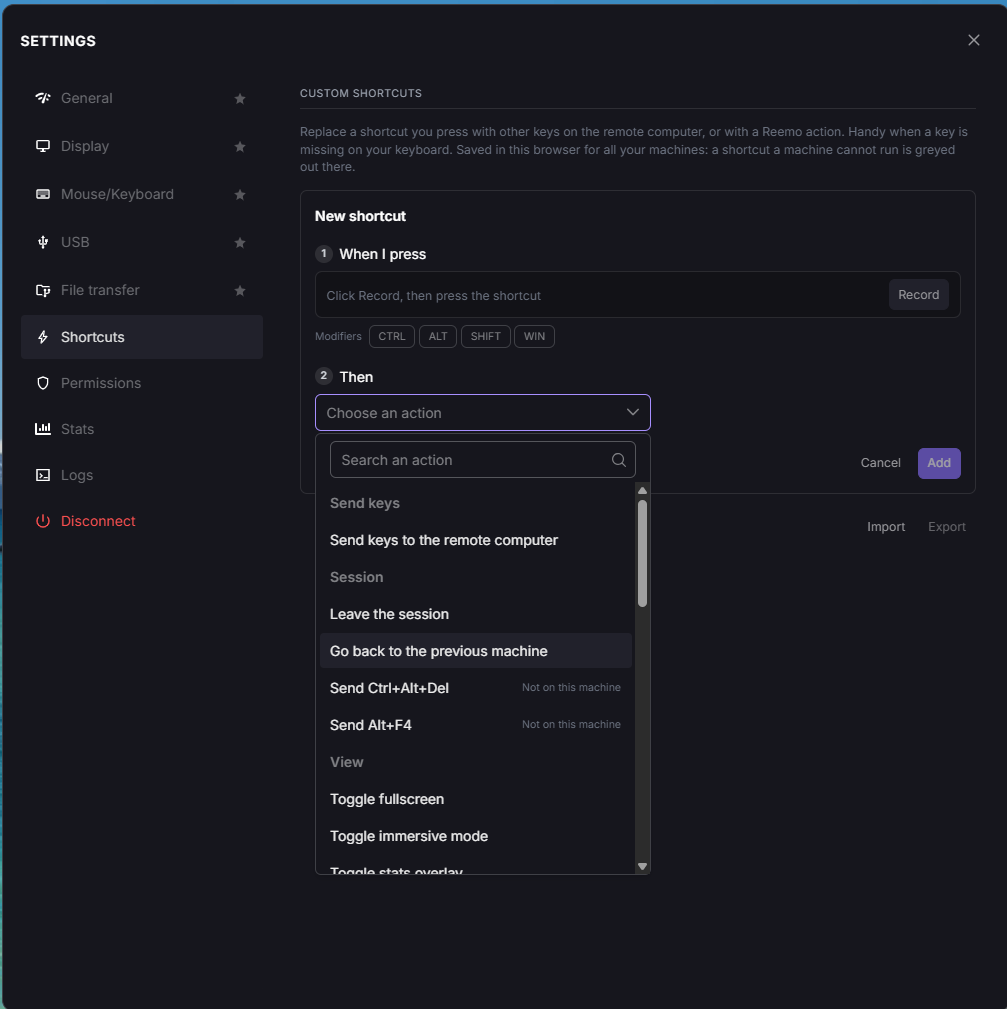
Creating a custom shortcut, with the list of actions open.
For example, to switch to fullscreen with CTRL+SHIFT+F, record CTRL+SHIFT+F, then choose Toggle fullscreen.
Modifiers
The modifier buttons depend on the operating system of your computer:
Windows and Linux: CTRL, ALT, SHIFT, WIN
macOS: CTRL, OPT, SHIFT, CMD
Available Actions
The Then list groups the actions by category: Send keys, Session, View, Input, Cursor, Audio, Quality and Panels. Many settings of the Settings panel also exist as actions, such as Toggle privacy screen, Mouse mode or Bandwidth. An action that the remote machine cannot run is greyed out and marked Not on this machine.
Saving, Import and Export
Shortcuts are saved in this browser and apply to all the resources you connect to, computers and containers alike. They do not follow you to another computer or browser: use Export to save them to a JSON file, and Import to load such a file again.
Note
The Send buttons of the Mouse & Keyboard tab (Ctrl+Alt+Del and Alt+F4) are separate from custom shortcuts and depend on the operating system of the remote machine.
Back to the Settings panel overview.