Notification Channels
Send alerts to the tools your team already watches, and make sure a delivery failure never goes unnoticed.
Access: verified_user Admin Area > shield Network & Security > notification_important Alerting > hub Channels.
A channel is a destination for alerts: in-app, email, webhook, Slack, Telegram, or Syslog. Each rule chooses the channels that deliver its alerts, and each channel decides the lowest severity it accepts.
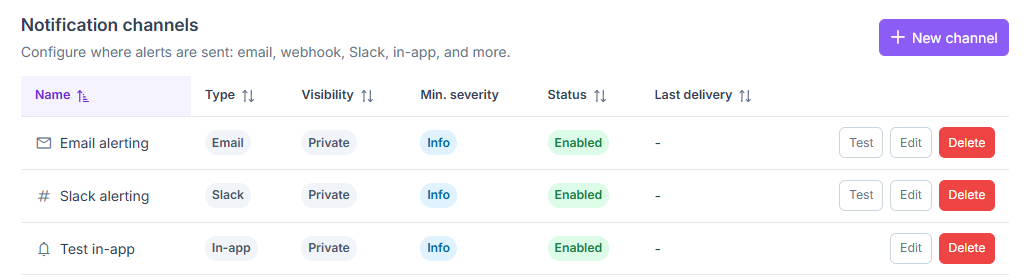
List of notification channels.
Create a Channel
Open the hub Channels tab, then click + New channel.
Enter a Name and choose the Type of the channel. The fields specific to that type appear.
Fill in the connection settings that appear for this type (for example the recipients of an Email channel, or the webhook URL of a Slack channel).
Optionally, choose the Minimum severity the channel accepts and customize the message template.
Click Create.
Tip
To check that a channel works, click Test on its row: a verification message is sent immediately.
Form Fields
General
Name: identifies the channel in lists and in rules. Required.
Type: where to send alerts: In-app (portal bell), Email, Webhook, Slack, Telegram, or Syslog.
Fields Specific to the Type
In-app
No specific field. Alerts are displayed in the portal, in the alert bell of the header, with a badge for unread alerts and a popover listing the latest ones.
Email
Recipients: email addresses to notify (comma-separated). Required.
Messages use the SMTP settings of your infrastructure (mail block of config.ini).
Webhook
URL: endpoint that receives an alert as a JSON
POSTrequest. Required. Loopback, link-local, and cloud metadata addresses are blocked for security.HMAC signing key (optional): sign the request so the receiver can verify it wasn’t tampered with.
Slack
Slack incoming webhook URL: endpoint URL from your Slack workspace. Required.
Telegram
Bot token: token of the Telegram bot that delivers alerts. Required.
Chat ID: conversation that receives the alerts. Required.
Syslog
Host: Syslog server address. Required.
Port: 514 by default. Change if your Syslog server uses a different port.
Protocol: udp by default.
Facility: 14 by default. Use the facility code appropriate for your setup.
Messages follow RFC 5424 format.
All secrets (HMAC keys, webhook URLs, tokens) are encrypted and hidden after saving for security.
Severity
Minimum severity: only deliver alerts at this level or higher (Info by default). For example, set this to Error if you only want urgent alerts. The form warns you if a rule’s severity is lower than the channel’s minimum.
Message Template
Customize the alert message format. Leave empty to use the default template. Click a variable to add it to the message.
Subject: email or message subject line.
Body: message content. Default includes the rule name, severity, action, instigator, organization, target, occurrence count, first-seen timestamp, and a console link.
Available variables: {{alert.severity}}, {{alert.occurrences}}, {{alert.url}}, {{rule.name}}, {{event.action}}, {{event.instigatorEmail}}, {{event.targetName}}, and {{event.organizationName}}.
Status and Visibility
Enabled (checkbox): turn on or off without deleting. Enabled by default.
Public (checkbox): allow organizations to use this channel in their own rules. Unchecked by default (instance-only).
Delivery Failures
If delivery fails, a retry job kicks in automatically with increasing delays (1, 5, 15, then 60 minutes). After the last attempt, the delivery is marked failed. You can see each attempt and failure reason in the Deliveries section of the alert detail.
When you delete a channel, it’s automatically removed from any rules that use it.
For security, console links in emails are limited to your instance’s own address.