Pen & Tablet
The Pen/Tablet tab of the Settings panel adjusts how your pen is forwarded and how your strokes are displayed while you draw on the remote machine.
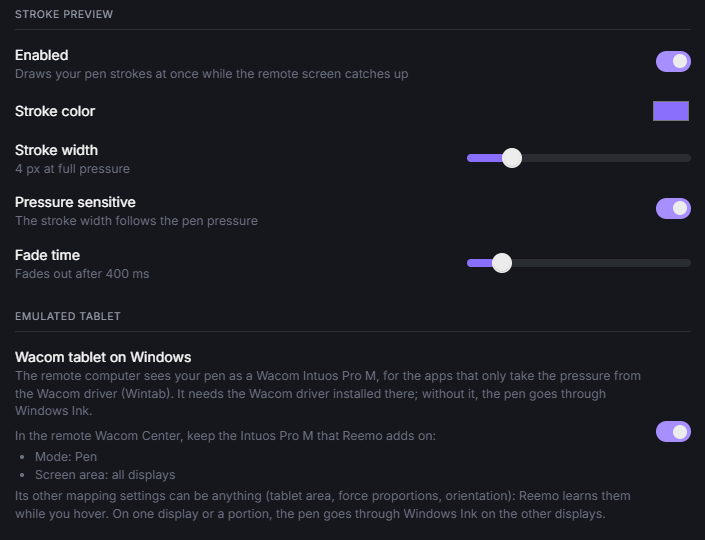
Settings panel, Pen/Tablet tab.
Stroke Preview
On a connection with high latency, the remote screen shows each stroke a moment after you draw it. Stroke preview draws your strokes on your screen right away, before they are sent over the network, while the remote screen catches up. You can draw without waiting for the result to appear.

Preview stroke with the default settings.
Enabled: turns the stroke preview on or off. It is on by default.
Stroke color: the color of the preview stroke.
Stroke width: the width of the preview stroke. By default, it is 4 px at full pressure.
Pressure sensitive: when on (default), the width of the stroke follows the pressure of the pen. When off, the stroke keeps the same width.
Fade time: how long the preview stroke stays visible before it fades out. By default, it fades out after 400 ms.
Emulated Tablet
Turn on Wacom tablet on Windows if some applications only read the pen pressure from the Wacom driver (Wintab). The remote computer then sees your pen as a Wacom Intuos Pro M tablet.
This option is for a remote machine running Windows, and it needs the Wacom driver installed on that machine. Without the driver, the pen goes through Windows Ink.
Then, in Wacom Center on the remote computer, keep the Intuos Pro M that Reemo adds turned on, with these settings:
Mode: Pen.
Screen area: all displays.
The other mapping settings (tablet area, force proportions, orientation) can have any value: Reemo learns them while you hover. If you map the tablet to a single display or to a portion of the screen, the pen goes through Windows Ink on the other displays.
Back to the Settings panel overview.