Color
Choose how the colors of the remote computer reach your screen, and check that your setup reproduces them faithfully, from the Color tab of the Settings panel. These settings matter most for color-critical work such as color grading, photo retouching or VFX.
Video Colors
Color Mode
Choose what Reemo prioritizes when it sends colors to your screen.
Match remote screen: shows the colors of the remote screen, adapted to your display. It suits everyday creative work, when you do not have an environment dedicated to color.
Exact values: preserves the color values the applications wrote, so that your monitor interprets them. It is meant for work where color accuracy is essential, and it assumes a calibrated monitor.
For example, a colorist who grades footage on a calibrated monitor chooses Exact values, while a designer who only needs the remote screen to look the same on a laptop keeps Match remote screen.
Note
Exact values does not guarantee faithful colors on its own: your local monitor must be calibrated and configured. The color modes also need a Reemo Service on the remote computer in version 2.10.0.2 or later on Windows, and 2.13.2 or later on Linux and macOS (see Update).
Color Depth
Choose the color depth of the image. A higher depth gives smoother gradients and less banding.
8 bits (default)
10 bits: smooth gradients without banding (see Combining Color Depth, Video Codec and HDR).
10 bits is best suited to professional color work, such as colorimetry or video retouching, rather than watching content. To display it, both ends need a 10-bit display configured for 10-bit output:
Remote machine: enable 10-bit output. With an NVIDIA GPU on Windows, open the NVIDIA Control Panel, go to Display > Change resolution, select Use NVIDIA color settings, then set Output color depth to 10 bpc.
Your computer: use a 10-bit display, also configured for 10-bit output. A 10-bit display is not necessarily HDR.
A warning icon warning next to Color depth means that 10 bits is limited. Hover over it to read the reason, for example:
The remote computer has no hardware HEVC (H265) 4:4:4 10-bit or HEVC (H265) 10-bit encoder: the remote computer cannot encode 10-bit video in hardware.
The lossless tiles are in 8 bits: set the remote X server to 30-bit color depth: on a remote computer running Linux, set the X server to 30-bit color depth to get 10-bit lossless tiles.
Reemo then falls back, as described in Combining Color Depth, Video Codec and HDR. The text under the field also tells which video is in use. For example, with an AVC codec it reads Lossless tiles only: the AVC (H264) 4:2:0 video stays in 8 bits: only the lossless tiles are in 10 bits. With a remote Mac in HEVC, it reads The video is in HEVC (H265) 4:4:4 10-bit.
HDR
Turn on HDR10 video for an HDR screen. It requires an HDR screen with HDR turned on on both sides, on the remote computer and on yours (XDR is Apple’s name for HDR on its displays). It is supported on Windows and macOS. Turning it on does not guarantee a correct HDR rendering on its own: the result depends on your operating system, your screen configuration and the compatibility checks that Reemo runs.
HDR switches the format to HEVC (H265). It is not possible with the AVC (H264) codec: if the video format is locked to AVC, the session stays in SDR, with 10-bit Build to Lossless tiles. HDR is not available while Build to Lossless is on: the field then reads Not available while Build to lossless is on: its tiles are SDR.
Combining Color Depth, Video Codec and HDR
The result depends on Color Depth, Video Codec and HDR. The table shows what the session displays and what Build to Lossless does in each case.
Settings |
What the session displays |
Build to Lossless |
|---|---|---|
8 bits |
8-bit video. |
Optional. |
10 bits with an AVC codec |
8-bit video, static areas in 10 bits. |
On and required. |
10 bits with an HEVC codec |
10-bit video. |
Optional. |
HDR checked |
HDR10 video in 10 bits, HEVC codec required. |
Not available. |
For example, for a video editing workstation where both screens are 10-bit, choose 10 bits with an HEVC codec: the video goes to 10 bits.
When an option is not possible, the web client falls back: from HEVC 4:4:4 to HEVC 4:2:0, then to AVC 4:2:0; from 10-bit video to 10-bit Build to Lossless tiles, then to 8 bits; from HDR to 10 bits, then to 8 bits.
Setup
Check your configuration before color-critical work. Setup compares your environment with the selected Color mode. The summary line states the mode and the route between your computer and the remote one, for example Exact values, from Chrome on Windows to a Mac, because the requirements depend on the operating systems involved.
A badge gives the state of the setup:
Ready: every check passes.
1 step left: a step still needs your attention.
To get to Ready:
Read the steps listed under the summary line.
For a step with an Apply button, click Apply. The line under the step says what it changes, for example Turns on 10 bits or Turns on HEVC 4:4:4 and 10 bits.
For any other step, change the setting it names on the computer concerned.
Each step disappears once it is done, and the badge changes to Ready when none is left. For example, from Chrome on Windows to a Windows computer, a step asks you to turn off Auto color management and HDR on the remote computer, under Settings > System > Display, because Windows converts the colors of the applications before the capture.
While a step is left, a warning icon warning also appears next to Color in the sidebar of the Settings panel. Hover over it to read the title of the step.
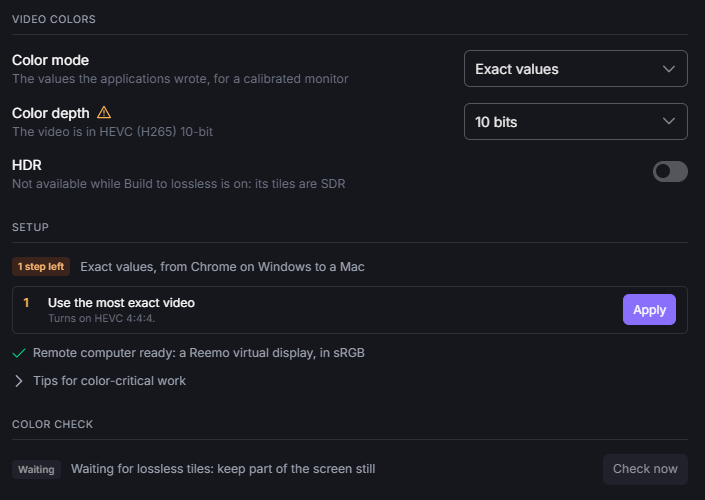
Setup with one step left: Reemo offers to turn on HEVC 4:4:4.
Checks that already pass are marked with a check mark, for example Video in HEVC 4:4:4, 10 bits and build to lossless or Remote computer ready: a Reemo virtual display, in sRGB. With Match remote screen, there is usually nothing to set: Setup shows Nothing to set: the colors of the remote screen are adapted to your display.
Tips for Color-Critical Work
Expand Tips for color-critical work under Setup for recommendations that help you keep the colors accurate:
If your monitor has a calibrated color profile, also set Force color profile to sRGB in
chrome://flags/#force-color-profile. Chrome otherwise converts the colors to that profile.On Windows, turn off Auto color management and Night light (Settings > System > Display), and keep the color settings of the graphics driver at their defaults.
Calibrate your monitor to the target of the work: sRGB, Rec. 709 (gamma 2.4) or Display P3.
Color Check
Verify that your session reproduces the colors faithfully, especially with a calibrated monitor or when the colors you see differ from the colors you expect. Color check compares the video with the lossless tiles, on areas of solid color, so it needs Build to Lossless to be on.
The check starts by itself and updates its result as the screen changes, which can take a few seconds. Read the result next to Color check and act on it:
Exact: the video matches the lossless tiles, as in 95% of pixels within 1 code. The lower the number of codes, the closer the match.
Close: the video is close to the lossless tiles, with a larger gap than Exact, as in Close: R 0 G 0 B 0, 95% of pixels within 6 codes. The result can change to Exact a few seconds later.
Waiting: Reemo is waiting for the video or for lossless tiles. Keep part of the screen still.
Too few flat areas: there is not enough solid color to compare. Open a window with flat colors on the remote computer and keep it still, for example the Test pattern of the EIZO monitor test in a browser on the remote computer. The result then switches by itself, to Exact for example.
n/a: turn on Build to Lossless.
Click Check now to run the check again. Click Copy diagnostic to copy the diagnostic information, which you can share with Reemo support.
If the colors still do not match your expectations, check the selected Color mode and the Setup steps before you change the color settings of your software.
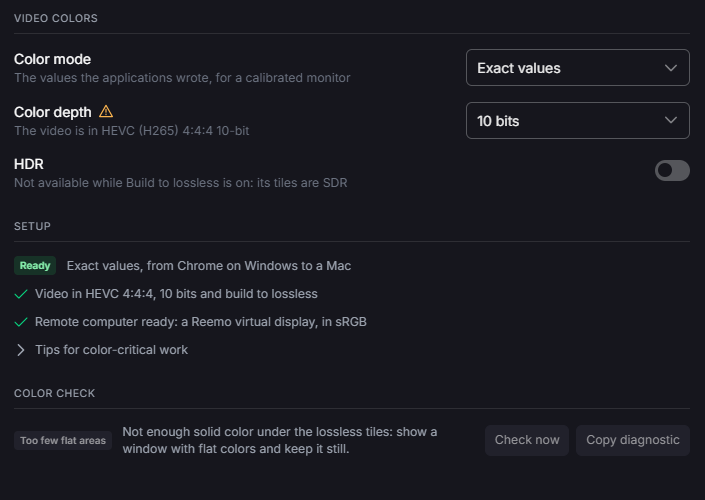
Setup is Ready, and Color check asks for more flat areas.
Back to the Settings panel overview.