Stats
The Stats tab shows live network and session diagnostics, useful when reporting a connectivity or performance issue.
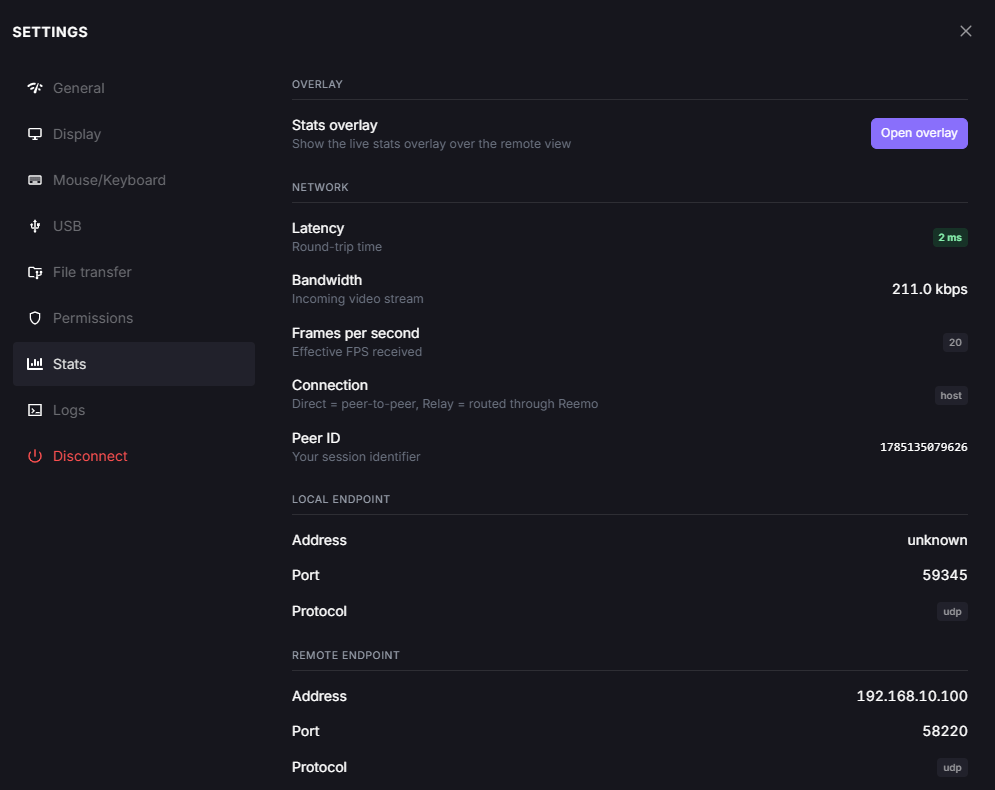
Settings panel, Stats tab, for a session that goes through the Websocket relay.
Overlay
Stats overlay: displays the same live stats directly over the remote view, without opening the Settings panel. Click Open overlay to show it.
Build to lossless tiles: a diagnostic aid for Build to Lossless. When enabled, the remote view is overlaid with colored tiles:
Green: lossless tile shown.
Red: changed since, lossy video shown.
Blue: image just received.
The overlay shows the same values as the tab (peer ID, latency, bandwidth, FPS, local and remote endpoints), plus the Codec and the Dynamic range (SDR or HDR) of the video, and the Type of each endpoint, such as srflx (direct connection through NAT) or relay.
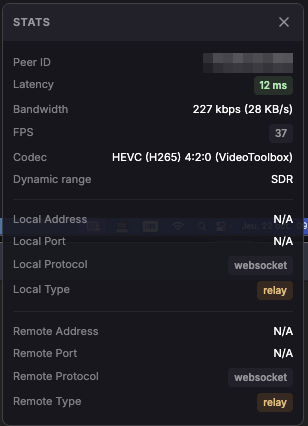
Stats overlay, for a session that goes through the Websocket relay.
Network
Latency: round-trip time, in milliseconds.
Bandwidth: incoming video stream bitrate.
Frames per second: effective FPS received (as opposed to the FPS limit, which is a target).
Connection: whether the session is Direct (peer-to-peer) or Relay (routed through Reemo).
Connection test: shown when WebRTC was unavailable and the session goes through the Websocket relay. Click Test again to retry WebRTC. If it still fails, the session stays on the relay.
Direct path opening: sets which side sends the first packet when the direct connection is opened (see Direct path opening below).
Peer ID: your session’s identifier.
Local and Remote Endpoints
The Local endpoint and Remote endpoint groups give the address, port, and protocol of each side of the connection. The protocol is udp or tcp, or websocket when the session goes through the Websocket relay.
Direct path opening
The choice applies from the next connection:
Default: no order is imposed, each side sends its packets as soon as they are ready. Nothing needs to be set.
Agent first: choose it if the agent runs behind a firewall such as a Palo Alto, which would otherwise block it (see Palo Alto).
Client first: choose it if your users connect from behind such a firewall.
Note
If punchOrder is set in reemo.ini (see Configuration), this setting is disabled.
Back to the Settings panel overview.