Session
The Session tab of the Settings panel shows the session’s end time and lets you ask for more time without reconnecting. It only appears when the resource limits the session duration. Your administrator sets this limit in the security settings (see Limit a Session’s Duration).
Extend a Time-Limited Session
Open the Session tab of the Settings panel. Available until shows the end time.
Under Additional time, choose the time to add: 15 min, 30 min, 1 h or 2 h. Enter a reason in Reason if you wish: it is shown to the approvers.
Click Request more time.
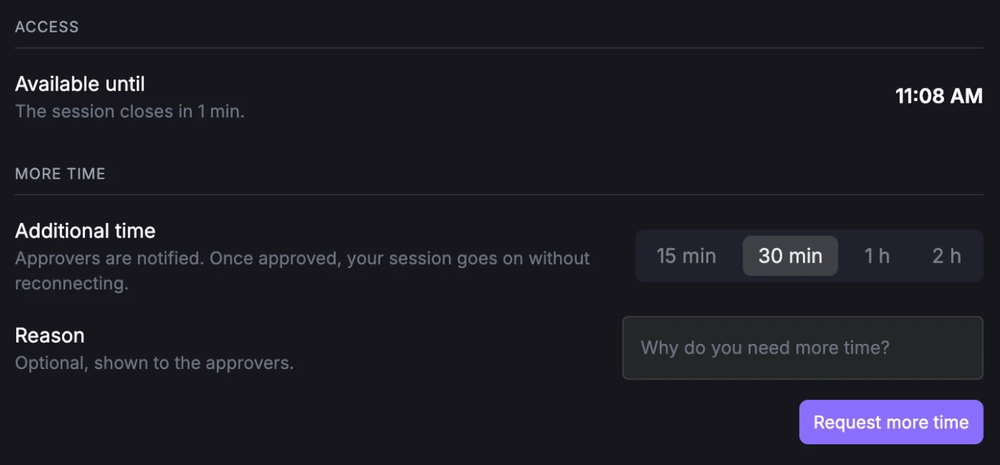
Session tab of the Settings panel.
Ten minutes before the session ends, a message points to the Session tab and stays on screen until you close it; one minute before the end, a reminder is shown. The extension follows the usual approval flow (notifications, quorum, rejection). Once approved, the deadline is pushed back without reconnecting. A rejection, with its comment, or an expired request is reported to you.
Back to the overview of the Settings panel.