Put in Maintenance
Close a target (a resource, a container profile, a group or a collection) while you work on it, with a message for users.
A maintenance applies from its start (right away by default) and lifts on its own at the end time. To follow, edit, end or cancel it, see Maintenances.
Note
During a maintenance, instance administrators, the organization’s administrators and support, the administrators and support of the resource’s group, and the requester of the maintenance keep their access to do the work.
Warning
Connected users are warned before their session is closed (5-minute notice by default, which you can change in the form).
Who can put in maintenance:
Organization administrators: any resource, container profile, group or collection of the organization.
Group administrators: those of their groups.
The procedure depends on the target: from its page for a resource, a container profile or a collection, or from its edit window for a group.
Covered Resources
Resource: the machine or the composite. A composite is also in maintenance as soon as one of its source machines is.
Container profile: every container created from the profile.
Group: the resources of the group and of its sub-groups, container profiles included.
Collection: the resources of the collection, including those added by auto-fill.
A resource added to a group or a collection during the maintenance is covered right away.
What Users See
Users cannot connect to the target, and their open sessions are closed after a notice. They do not receive any email. They see the maintenance in three places:
Resources dashboard: as soon as the maintenance is planned, the resource carries the Planned maintenance badge and the hint Maintenance from followed by the start time. During the maintenance, the badge becomes Maintenance, the In maintenance button is disabled and the end time shows. The message shows when hovering the badge.
Connection: a connection attempt shows This resource is in maintenance until followed by the end date, then the message.
Open session: at the start of the notice period, a notice reads Maintenance: your session will be closed at followed by the closing time, then the message. A reminder reads Maintenance: your session will be closed in 1 minute. 1 minute before, then a last notice announces the disconnection in 30 seconds. The session is then closed.

Resource in maintenance in a user’s dashboard.
Put a Resource, a Container Profile or a Collection in Maintenance
Open inventory_2 Inventory, then the page of the resource (tv Remote Desktops), the container profile (box_edit Container Profiles) or the collection (list_alt Collections).
Click Maintenance.
Fill in the form fields.
Click Put in maintenance.
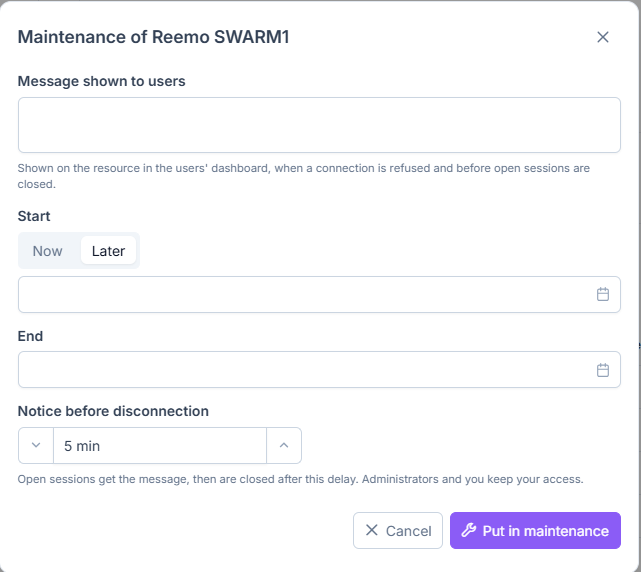
Maintenance form, with the start set to Later.
Put a Group in Maintenance
Click the group’s edit icon in the menu.
Open the Maintenance tab.
Click Put in maintenance.
Fill in the form fields.
Click Put in maintenance.
For example, put the group of a remote site in maintenance during an internet outage: all the resources of the group and of its sub-groups are closed to users, with a message.
Form Fields
Message shown to users: shown on the resource when a connection is refused and before open sessions are closed.
Start: Now (default), or Later at the chosen date and time.
End: date and time when the maintenance lifts. A maintenance lasts 30 days at most.
Notice before disconnection: delay before open sessions are closed (5 minutes by default). With 0, sessions are closed at the start.